Before you submit to Apple
Apple Podcasts needs a working podcast RSS feed. That feed should include your show information, artwork, and at least one published episode. If you are still planning the concept, start with How to Start a Podcast. If budget is the constraint, How to Start a Podcast for Free explains the leanest path.
With PoddyHost, the basic flow is: create your podcast, publish at least one episode, copy the RSS feed from the public podcast page, then submit that feed to Apple Podcasts Connect.
1. Create your podcast in PoddyHost
Start by creating the podcast itself: topic, show name, narrator voice, and cover art. Your show should look like something a listener would understand immediately from the title, artwork, and description.
For Apple, be especially careful with:
- Show title: clear, branded, and not stuffed with keywords
- Author or host name: the person, company, or brand behind the show
- Description: a useful explanation of who the show is for and what episodes cover
- Cover art: square artwork that is legible at small sizes
- Category: the closest match to the show’s actual topic
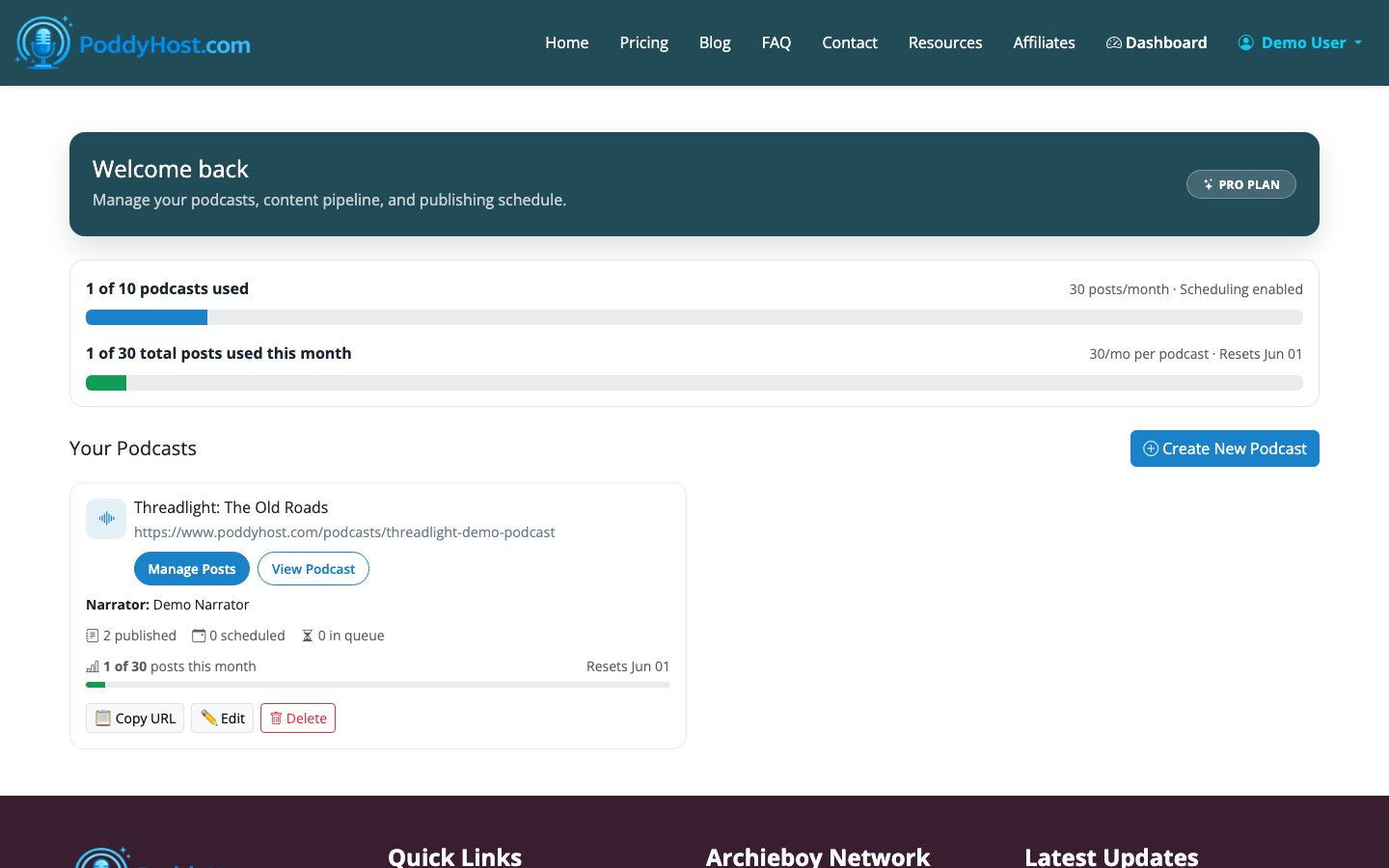
PoddyHost can generate the script, narrate episodes with an AI voice, and host the finished MP3 files. If you use Auto Mode, PoddyHost can publish one new episode per day hands-off after the podcast is configured.
2. Publish at least one episode
Apple generally expects a feed to include at least one episode before the show can be available in Apple Podcasts. In PoddyHost, open your podcast and check the episode list. Wait until the episode status is published before submitting the RSS feed.
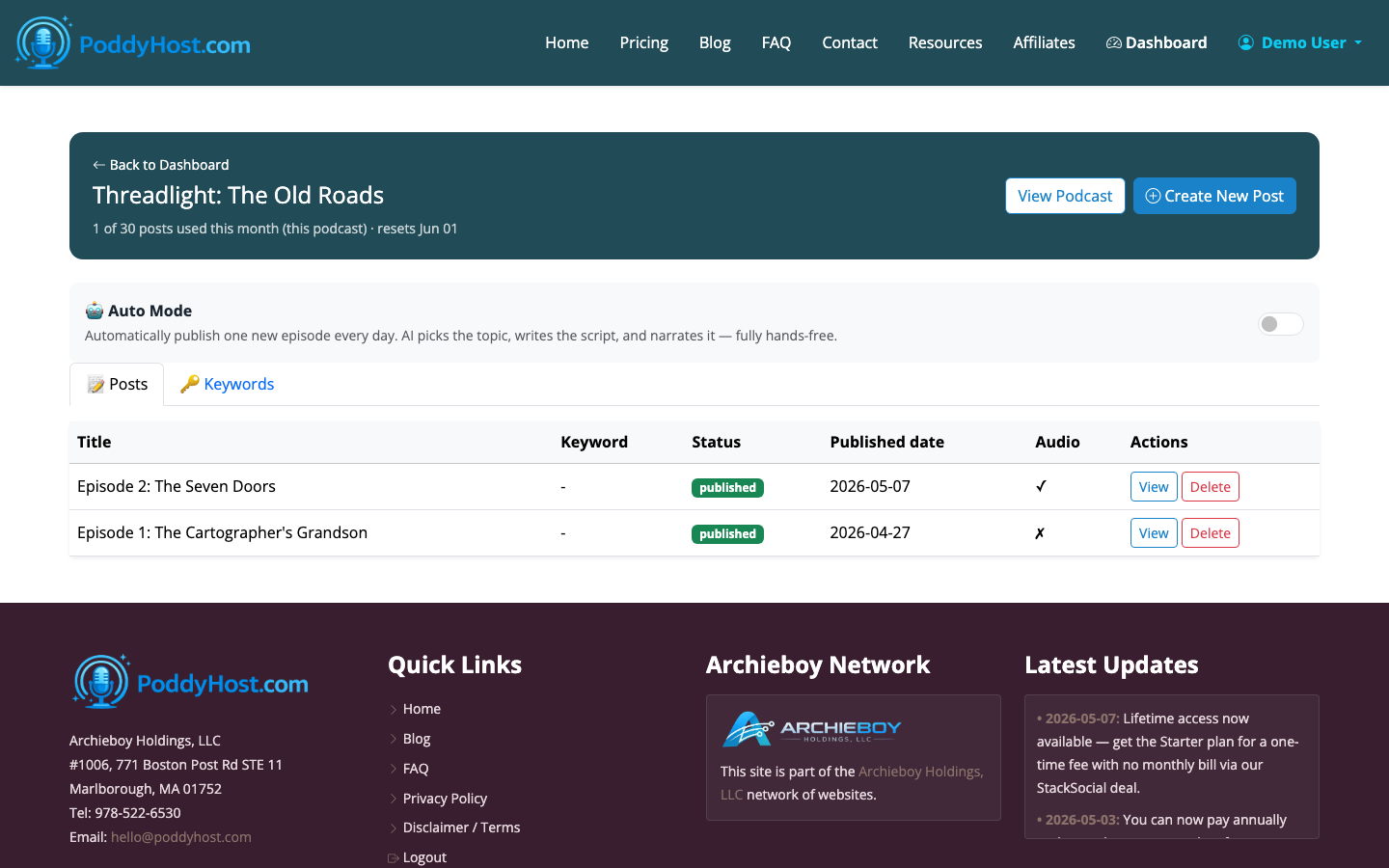
A single trailer or short introductory episode is enough to start, but it should still represent the show properly. Avoid submitting a placeholder episode called “test” or “coming soon.” Apple reviewers and early listeners will see what you publish.
3. Open the public podcast page and copy your RSS feed
Once the episode is published, open the show’s public podcast page in PoddyHost. This page lists published episodes and includes the RSS feed link. Copy that RSS feed URL; you will paste it into Apple Podcasts Connect.
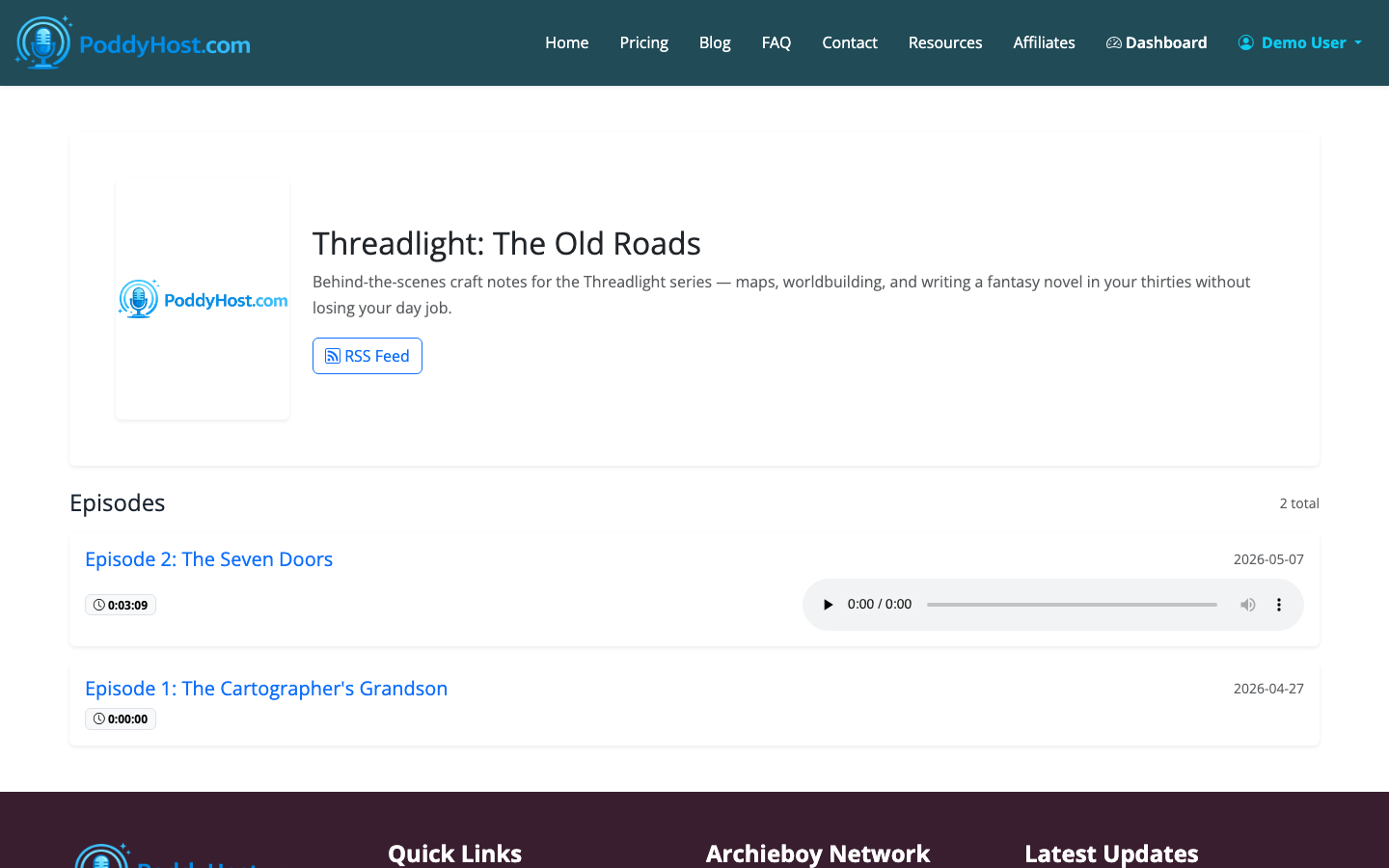
The RSS feed is the important part. Apple reads the feed and pulls your show metadata and episode media from PoddyHost. You should not need to upload the same MP3 manually to Apple for a normal free podcast.
4. Sign in to Apple Podcasts Connect
Go to Apple Podcasts Connect and sign in with your Apple Account. If you have never used it before, Apple may ask you to accept terms and complete account setup.
You do not need to join the paid Apple Podcasters Program just to submit a standard free podcast through an RSS feed. That program is mainly relevant for Apple-hosted subscriber benefits and paid subscription features.
5. Add a new show with an RSS feed
In Apple Podcasts Connect, choose the option to add a new show. Select the RSS feed option, then paste the RSS feed URL you copied from PoddyHost.
Apple will validate the feed. If Apple finds an issue, fix it in PoddyHost first, then return to Apple Podcasts Connect and try again. Common issues include missing artwork, missing episode media, invalid feed access, or incomplete show metadata.
6. Review show details in Apple Podcasts Connect
After the feed validates, Apple will show the podcast information it read from the RSS feed. Review the title, author, description, category, artwork, and episode details.
Do not rush this step. Apple Podcasts is a major listening directory, and the first approved version of your listing is what early listeners will see.
You may also need to confirm content rights, add contact information, and choose availability. Most creators make the show available in all supported countries and regions unless there is a legal or licensing reason not to.
7. Publish the show for Apple review
Once the show information is complete, publish or submit the show in Apple Podcasts Connect. Apple will review it before it appears publicly in the Apple Podcasts catalog.
Review time varies. Some shows are approved quickly, while others take longer if Apple flags metadata, artwork, feed access, or content questions. During review, keep the RSS feed live and do not delete the first episode.
8. Keep publishing from PoddyHost
After Apple approves the show, you continue publishing episodes from PoddyHost. Apple checks the RSS feed for updates, so new published episodes should flow through without a separate manual upload.
If you change your show title, artwork, description, or episode details in PoddyHost, Apple will usually pick up those RSS changes after a refresh period. The delay is normal; podcast directories do not always update instantly.
For beginners, this is the main concept to understand: the podcast host is the source of truth, and Apple Podcasts is one directory that reads from that source. For a broader beginner workflow, see How to Start a Podcast for Beginners.
Common problems when uploading a podcast to Apple
Apple says the feed cannot be validated
Check that the RSS feed URL opens publicly in a browser and that your show has at least one published episode. If the episode is still queued or generating, Apple may not see valid media yet.
Artwork is missing or rejected
Use square cover art that looks clear at small sizes. Avoid tiny text, crowded layouts, and misleading imagery. If you upload new artwork, give Apple time to refresh the feed.
The episode appears in PoddyHost but not Apple
First confirm the episode status is published. Then allow time for Apple to refresh the RSS feed. If it still does not appear, check whether the episode has complete title, description, and MP3 media in the feed.
You already have a podcast on Apple
If your show is already in Apple Podcasts but not in your Apple Podcasts Connect account, use Apple’s claim existing show flow instead of creating a duplicate listing. Apple may provide a claim token that must be added through your hosting provider.
Do you upload each episode to Apple?
For a standard RSS-based podcast, no. You upload or generate the episode in your podcast host, then Apple reads it from the feed. That is why choosing a reliable host matters.
PoddyHost is built for creators who want the hosting, AI scriptwriting, AI narration, MP3 generation, RSS feed, and directory distribution workflow in one place. You can still manage the Apple submission from Apple Podcasts Connect, but your episodes continue to live in PoddyHost.
