Before you submit to Spotify
Spotify does not work like YouTube, where every creator uploads a standalone file directly to the platform. For most audio podcasts, Spotify reads your podcast RSS feed. Your podcast host stores the MP3 files and show metadata; Spotify checks the feed and displays your episodes in its app.
With PoddyHost, that means you can create the show, generate or upload cover art, choose an AI narrator voice, publish episodes, and then use your public podcast page or RSS feed to get the show onto Spotify.
How to upload podcast to Spotify with PoddyHost
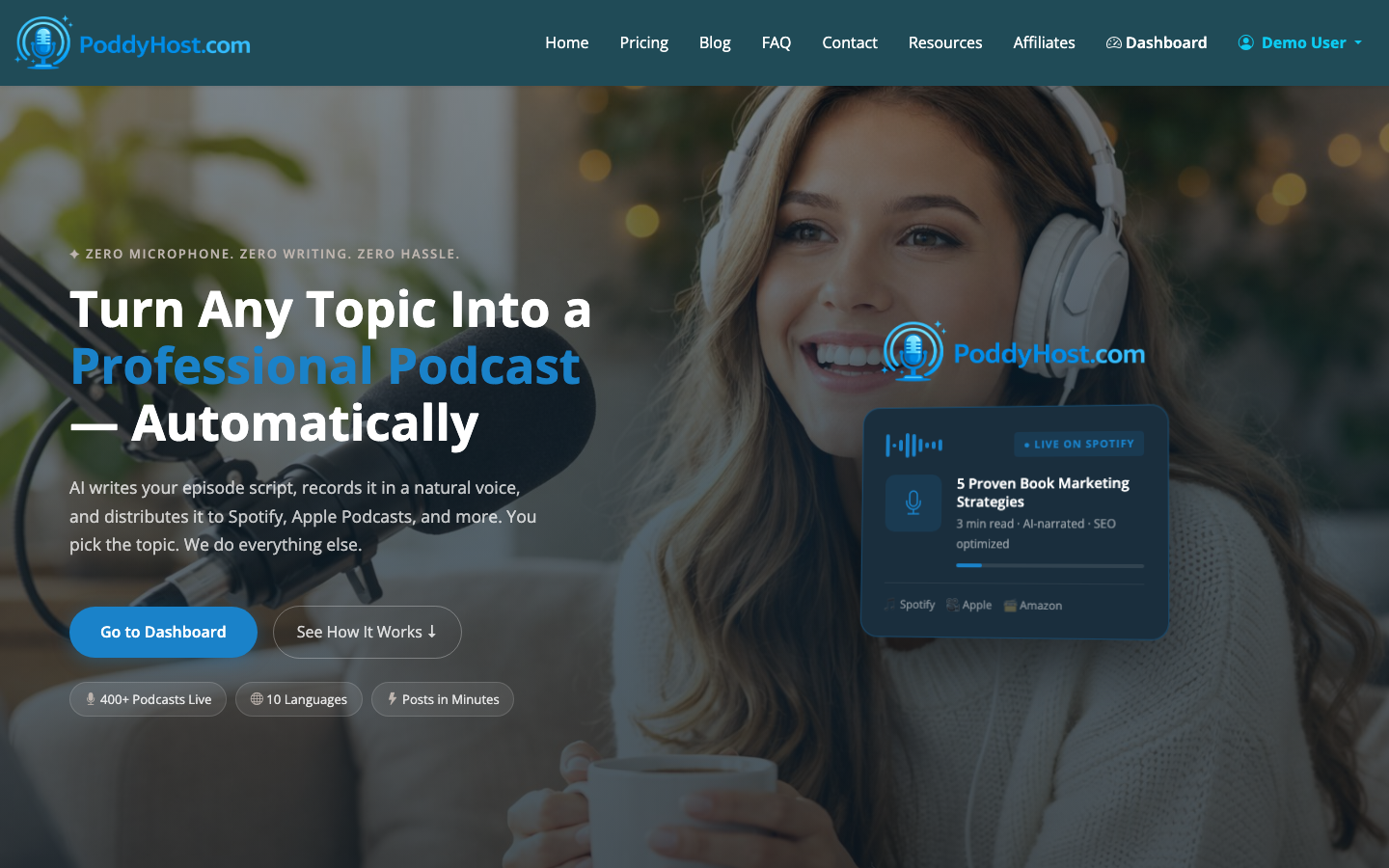
- Create your podcast in PoddyHost
Start by creating the podcast itself: topic, title, narrator voice, and cover art. If you are still deciding on the concept, read How to Start a Podcast first so the show has a clear audience before you submit it anywhere.
Your Spotify listing will pull from the same core assets listeners see elsewhere, so treat the setup as public-facing work. Use a square cover image, a title that is easy to search, and a description that explains who the show is for in the first sentence.
- Confirm your plan supports the workflow you need
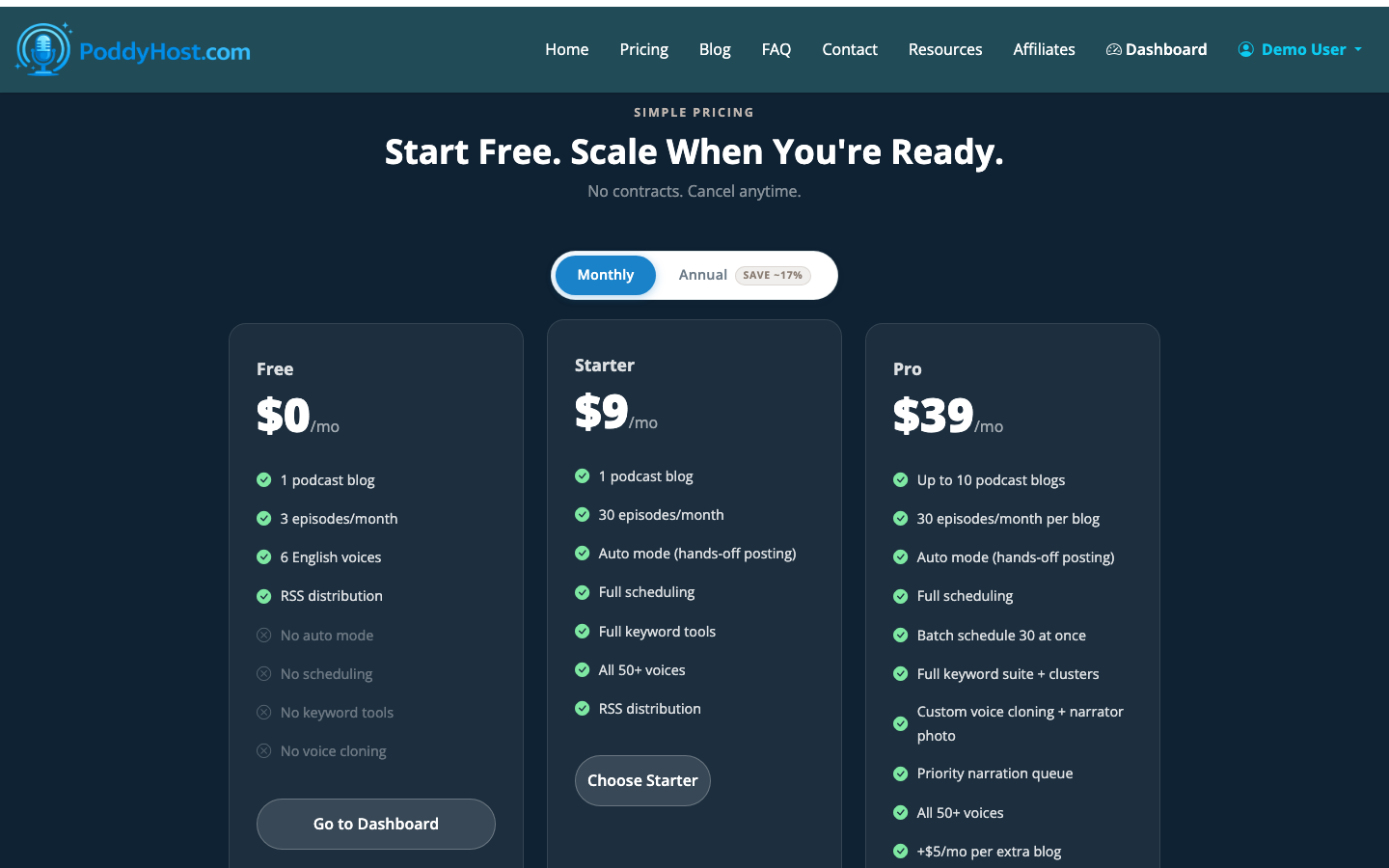
PoddyHost offers Free, Starter, Pro, and lifetime Starter options. You can create and test a show before committing to a larger publishing workflow, but serious distribution is easier when you have enough publishing capacity for the cadence you want.
If you are comparing options, How to Start a Podcast for Free explains what you can reasonably do before paying for hosting, tools, or promotion.
- Publish at least one episode
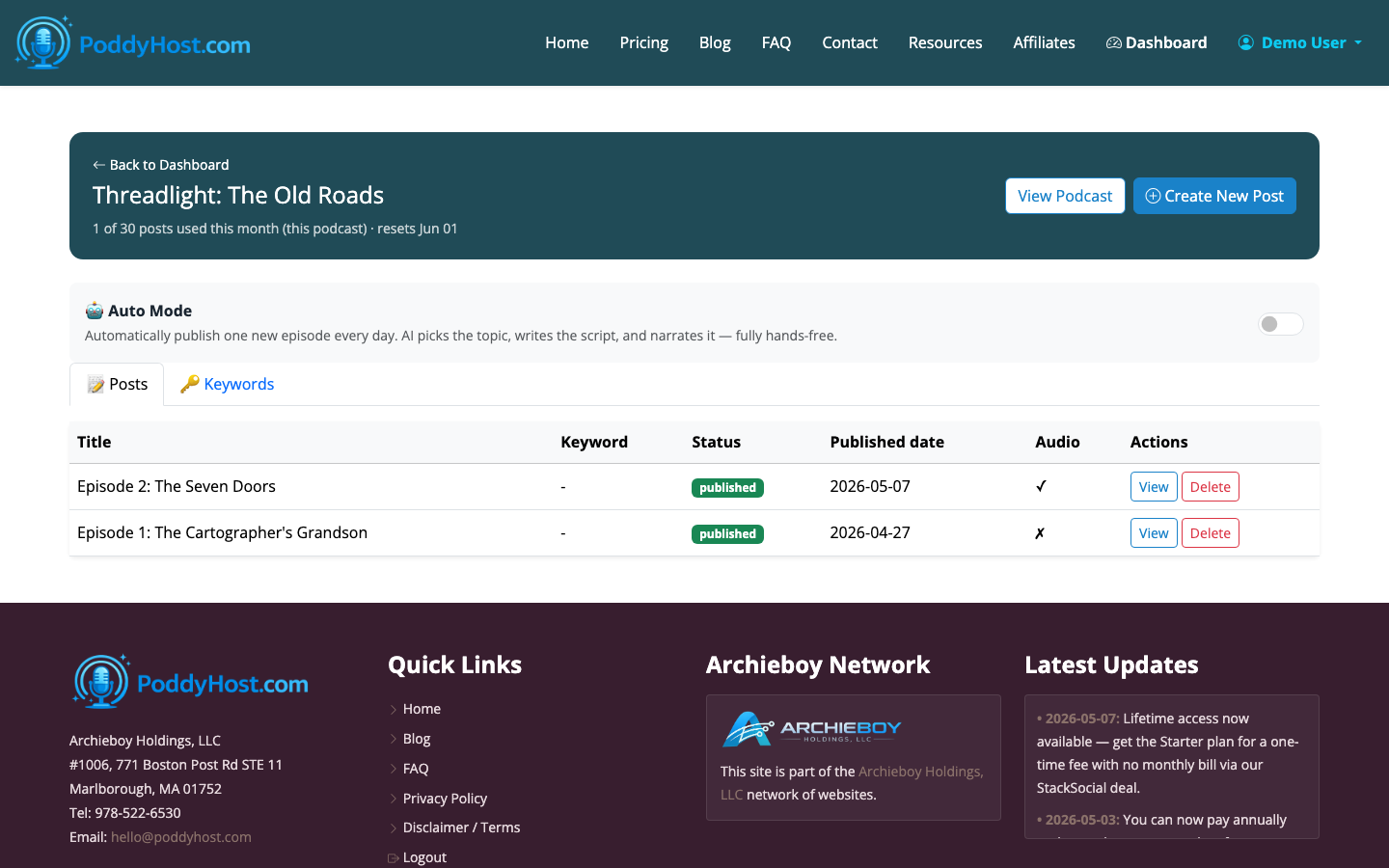
Spotify needs a real podcast feed, and a useful feed should include at least one published episode. In PoddyHost, you can generate an episode manually or use Auto Mode to publish one new episode per day.
Before submitting, check the episode status. A queued or generating episode is not ready for listeners yet. Wait until the episode is published, then review the title, description, and audio.
- Open your public podcast page
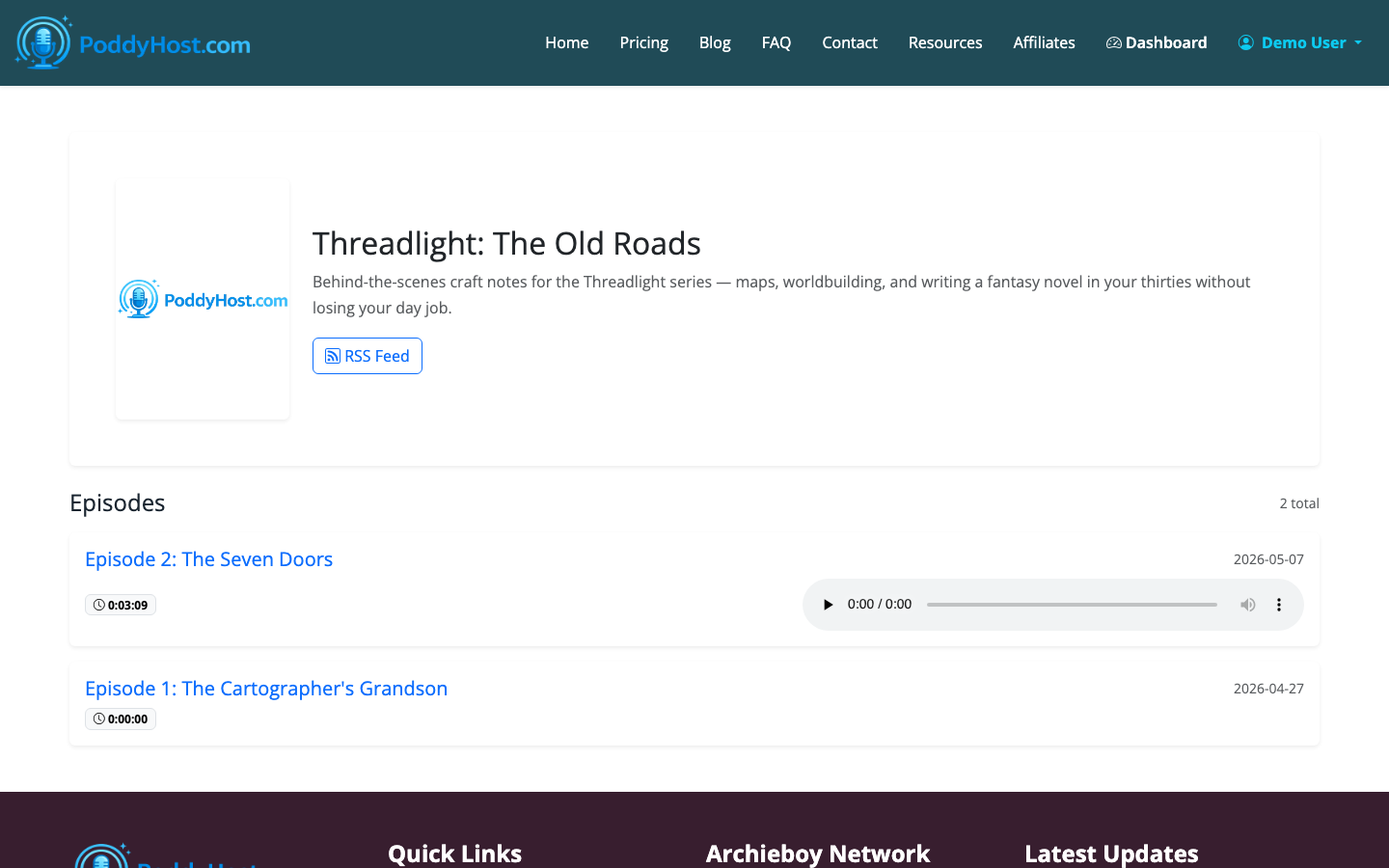
Once your episode is published, go to the public podcast page. This page lists your published episodes and includes the RSS feed and Spotify submission link.
This is the practical difference between asking how to post a podcast on Spotify and asking how to host a podcast: Spotify is the directory and listening app; PoddyHost is where the feed and audio live.
- Submit the show to Spotify
Use the Spotify submission link from your public podcast page, or copy your RSS feed and submit it through Spotify for Creators. Spotify may ask you to confirm show ownership, review podcast details, and choose category or language information.
The exact Spotify screens can change, but the core requirement is stable: Spotify needs a valid RSS feed with your show metadata and at least one episode. After submission, the show may appear quickly, or it may take time for Spotify to process and display the listing.
- Check the Spotify listing after approval
After Spotify accepts the feed, search for your podcast in Spotify. Check the show title, cover art, description, and first episode from a listener account, not only from the creator dashboard.
If something looks wrong, update it in PoddyHost first. Spotify usually follows the RSS feed, so changes to titles, descriptions, artwork, and newly published episodes should flow from your host to Spotify rather than being edited separately in multiple places.
What happens after your podcast is on Spotify
Once the show is live, new PoddyHost episodes can appear in Spotify through the RSS feed. You do not need to repeat the full submission process for every episode.
A simple publishing rhythm is enough at the start:
- Keep episode titles specific and searchable.
- Use a consistent format so listeners know what they are getting.
- Review failed episode statuses before assuming distribution is broken.
- Download MP3s when you need local copies for backup or reuse.
- Add sponsor or ad text carefully so it sounds natural in the narrated episode.
If you are new to the whole process, How to Start a Podcast for Beginners covers the planning steps that come before distribution.
Common Spotify podcast submission mistakes
Submitting before the show is ready
A podcast with placeholder artwork, a vague description, or no published episode gives Spotify and listeners very little to work with. Finish the basic packaging first.
Confusing hosting with distribution
When people search how to make a Spotify podcast, they often mean two different things: creating the podcast and getting it listed on Spotify. PoddyHost helps create and host the show. Spotify helps listeners find and play it.
Expecting instant updates
RSS-based podcast distribution is not always immediate. If you publish a new episode in PoddyHost and do not see it on Spotify right away, give Spotify time to refresh the feed before changing settings repeatedly.
Hear it in action
For a real example of AI-assisted podcast production, listen to AI Ad Writing from the AI-Driven Creativity series.
